I’ve created an interactive manual with more than 220 pages. In the project settings, there are a few features that are visible on all pages—similar to your Eco Friendly Lifestyles - Atomi Systems, Inc. . Now I’ve added an imprint and a foreword that don’t require these settings. Is it possible to disable these project settings for just a few pages? I can also move these pages to the end of the manual.
Second question: When I link to another chapter within the manual—one you can jump to via a link—I’d like a button to appear at the destination slide that takes you back to the first slide. But if you don’t use the link and arrive at the destination later on, that button shouldn’t be there. I tried doing this using variables, but it didn’t work. First slide: when the link is clicked, set variable to false; jump destination: if variable = false, then show button. It just didn’t work. Do you have a solution for this?
Could you please send us your project to support@atomisystems.com so that we can check both issues more carefully?
Since the project contains more than 220 slides, you can remove irrelevant slides before sending it and keep only the slides needed to reproduce the issues. Alternatively, please let us know which specific slides we should check.
If the project is too large to attach, you can upload it to a cloud storage service such as Google Drive or Dropbox and send us the download link.
Thank you for sending the project file and the video. I’ve checked your example.
For your first question, there are two ways you can achieve this:
Adjust the timing of the groups
If the slides where you want to hide these groups are located right after the first slide, as shown in your video, you can adjust the Start Time of the groups so that they start from the slide where you want them to appear.
Alternatively, if you move the imprint and foreword slides to the end of the project, you can simply shorten the duration of these groups so that they end before those slides.
Use Show/Hide Object actions
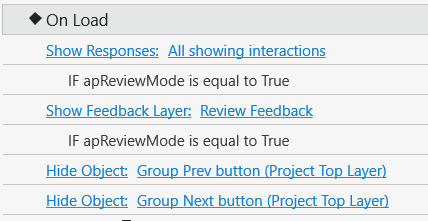
On the slide where you want these groups to be hidden, add Hide Object actions for those groups to the slide’s On Load event.
Then, on the nearest following slide where you want them to appear again, add Show Object actions for those groups to that slide’s On Load event.
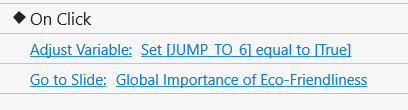
For your second question, your variable approach is fine. You just need to move the Adjust Variable action before the Go to Slide action. The variable needs to be changed before jumping to the destination slide.
Thank you very much for your kind reply. Unfortunately, the solutions for Question 1 don’t work. Any changes made to the group elements on one page (whether at the front or back) affect the group on all pages. I think that’s basically the point of it and is therefore set in the project settings. Is there perhaps a JavaScript solution? If not, I’ll just leave it as is.
As for Question 2, I missed that one again. Of course, the variable change has to come BEFORE the link.