II am a beginner with Active Presenter and am using an old free version to decide whether to purchase the licence.
I have created a project with multiple image slides, for each of which I have set a transition effect. These are the issues I am facing:
How can I preview all the slides instead of viewing them individually one by one? I have set Auto Advance on each slide, but when I launch the preview of the first one, it does not automatically move on to the next one. And if I merge all the slides together, the transition effect is only active on the first image.
If I leave the slides separated and export them all to an MP4 video, the transition effect is preserved on each slide, but a blank (white) slide appears for a moment between each one.
It’s possible that your project contains an interaction that pauses the slide. Please double-check this, or feel free to send your project to support@atomisystems.com so we can take a closer look.
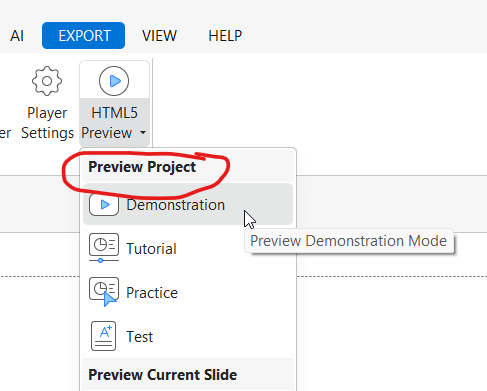
To view the transitions, please preview the project in HTML5 Demonstration mode:
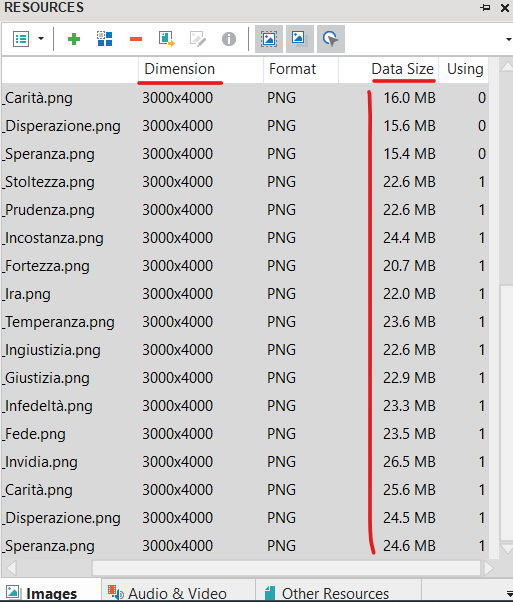
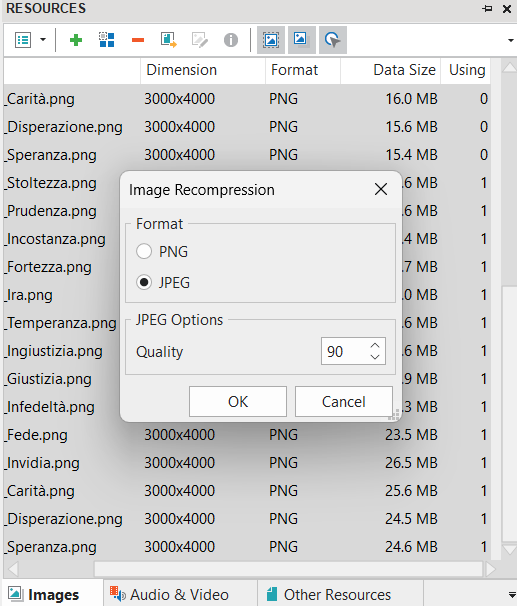
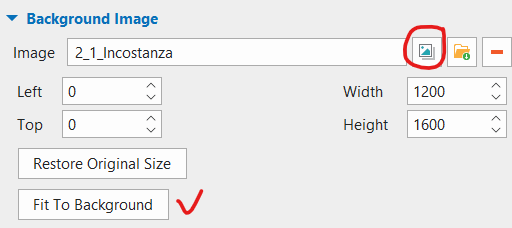
Thanks for sharing your project file! I noticed it’s quite large (over 600MB) and contains only images. The slide size is set to 1200 × 1600, while the images themselves are much larger at 3000 × 4000. This size difference can cause the browser to load more slowly.