I have a 5 buttons on a slide. Clicking a button changes the button color to faint blue and takes me to the next expected slide. Now when I click “Back” on this slide, I need the button color on the previous slide to remain faint blue to indicate that the learner has already seen this content.
I’ve created a sample project where this solution works correctly and attached it for your reference. Please review the project and check the actions to see how it’s implemented. Let me know if you have any questions after testing it.
Thanks for sharing the sample .approj file. I tried using the Adjust variable option the way its there in the demo.approj but unfortunately it still does not work. The only difference in my case, is I have used the Go To Slide as against Go Forward used in this Demo.approj file. Would that create this issue for me?
Also, what is the possible reason for the color changing back again to original when I go back to the previous slide and hover over the button?
I’ve recreated the demo and also checked the hover issue you mentioned, and it’s working fine on my end.
The reason why the color changes back when you return to the previous slide and hover over the button is usually because the button states are reloaded. When you go back, the default state becomes active again. To prevent this, make sure the button’s state is controlled through a variable instead of relying only on default states.
You can also check the video I shared, where you’ll see the recreated demo and how the hover issue was resolved.
Thanks a lot this worked. Next, I have approximately 9 images in a tree format on a slide. I would want to view each of these images in a bigger size after clicking. Also, when I click these images, the other images should not be visible. Can you please help achieve this?
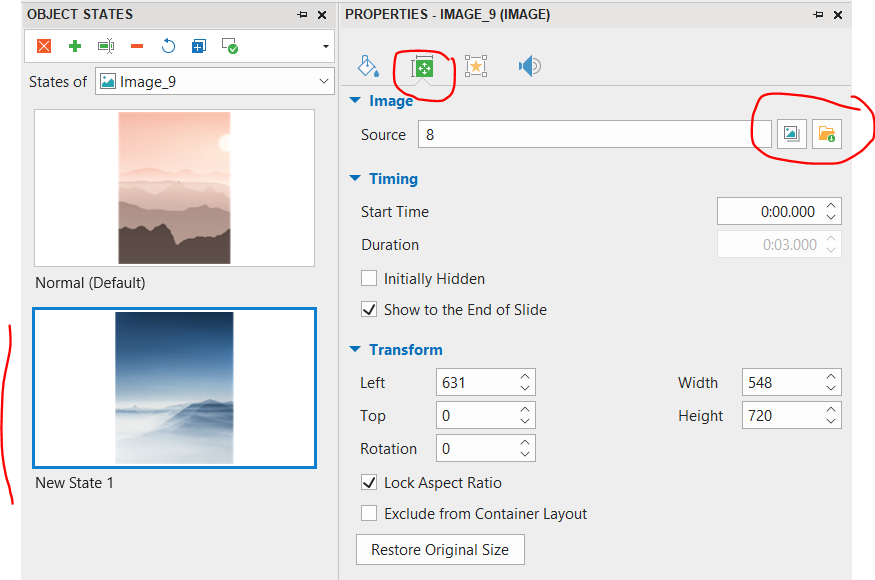
In that new state, resize the image to make it larger.
Then use the Change Object State action to switch between the image sizes and the Hide Object action if you want to hide/show the image based on user interaction.
I see that there are two images present but unable to make out how have they been added or what have they been named? Can you please help elaborate? In my case I have approximately 9 images on a single slide. Is the same activity doable when I have 9 images on a single slide?
Additionally, is there a way we can create a collapsible TOC? Also, can I lock a specific section of the TOC and make it visible only when the learner completes the previous sections?
Yes, these two images demonstrate an example where clicking on Image_9 changes its object state and simultaneously hides Image_6.
To achieve this, you need to create an additional state for the image using the Object State feature. You can follow this tutorial for guidance:
Then, follow the steps I mentioned earlier to set it up.
This example shows how to handle clicking on one object. If you have 9 objects, you will need to add more event-action pairs to show or hide them accordingly. For more details, see:
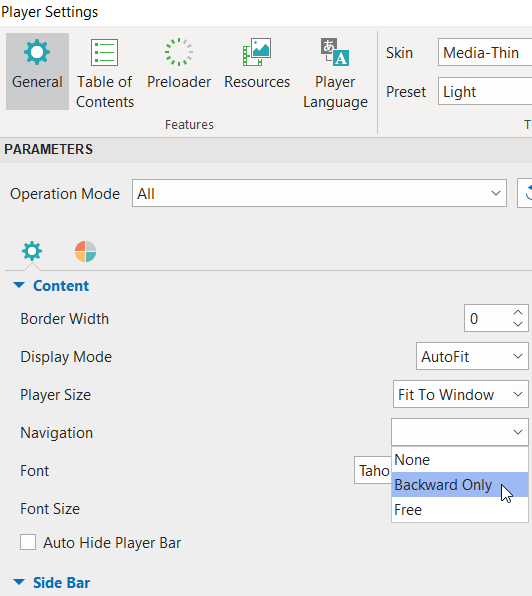
Regarding your second question about the Table of Contents (TOC) in ActivePresenter, you can use the default TOC and configure the Navigation option in Player Settings (Export tab > Player Settings) to None or Backward Only as needed.